Learning Bluetooth Connections
Your board, as mentioned on day one of lab, has the ability to communicate with Bluetooth. We’ll learn about how the board works with a modification of the Adafruit Quick Draw Duo game specifically designed for the Spring 2025 New Media Research Studio course. Remember to update your board to the latest version of CircuitPython first.
Remember last week from our Introduction to CircuitPython that in our code references section, we had code that imported libraries? Here’s some code to remind you:
import board
import neopixel

pixels = neopixel.NeoPixel(board.NEOPIXEL, 10)
RED = (255, 0, 0)

while True:
    pixels[0] = RED
That first chunk is where we import libraries- in this case, board and neopixels. Libraries, as a reminder, are programs written by other people that have useful variables and functions and objects, etc, that you can then use without recreating them. These two libraries are built-in to CircuitPython – that is, they came installed on the board when we put CircuitPython on it. But there is a limited amount of space on your board, and literally hundreds of libraries written for use, so they had to pick and choose what gets installed. Many of the programs we are going to write these semester need new libraries- libraries that aren’t loaded by default. Today, we’ll learn how to load a new library on your Bluefruit.
Visit the course lab resources Google folder and download the zip file for today’s lab- it’s called Lab 3 Bluetooth LE. Unarchive it and you’ll see three items – a .wav sound file, a .py code file, and a new lib folder:
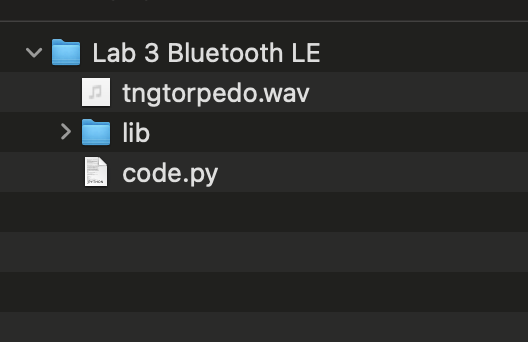
Drag each of those into your CIRCUITPY drive and replace the items that are there (if the option appears- for cody.py and the lib folder, it should. The .wav file is new and should just copy over. Now your CIRCUITPY looks like this:

You’ve replaced the lib folder that was on your CIRCUITPY with a new folder containing what you need for this program. Now, this isn’t the only way to update the libraries- you can also move the individual libraries onto the drive one by one. In that case you need to make sure they are in the lib folder! We’ll revisit this issue later. For now, just verify that your file list looks like the above – especially the contents of the lib folder.
Now, open up Mu and load the code. In that big data dump you replaced your code.py file with this (I am only showing part of the file, as it is quite long):

Your Bluefruit may also be blinking a bit. What has loaded is a code for a quickdraw game, but it won’t run unless the Bluefruit detects an opponent. That doesn’t mean there is no code running, in fact, the code is constantly checking for someone to play against. You can peek in at this process using the serial console, which is a way your computer displays information it receives from the microcontroller. To view it, press the SERIAL button at the top of the Mu display, and your screen will split to this:
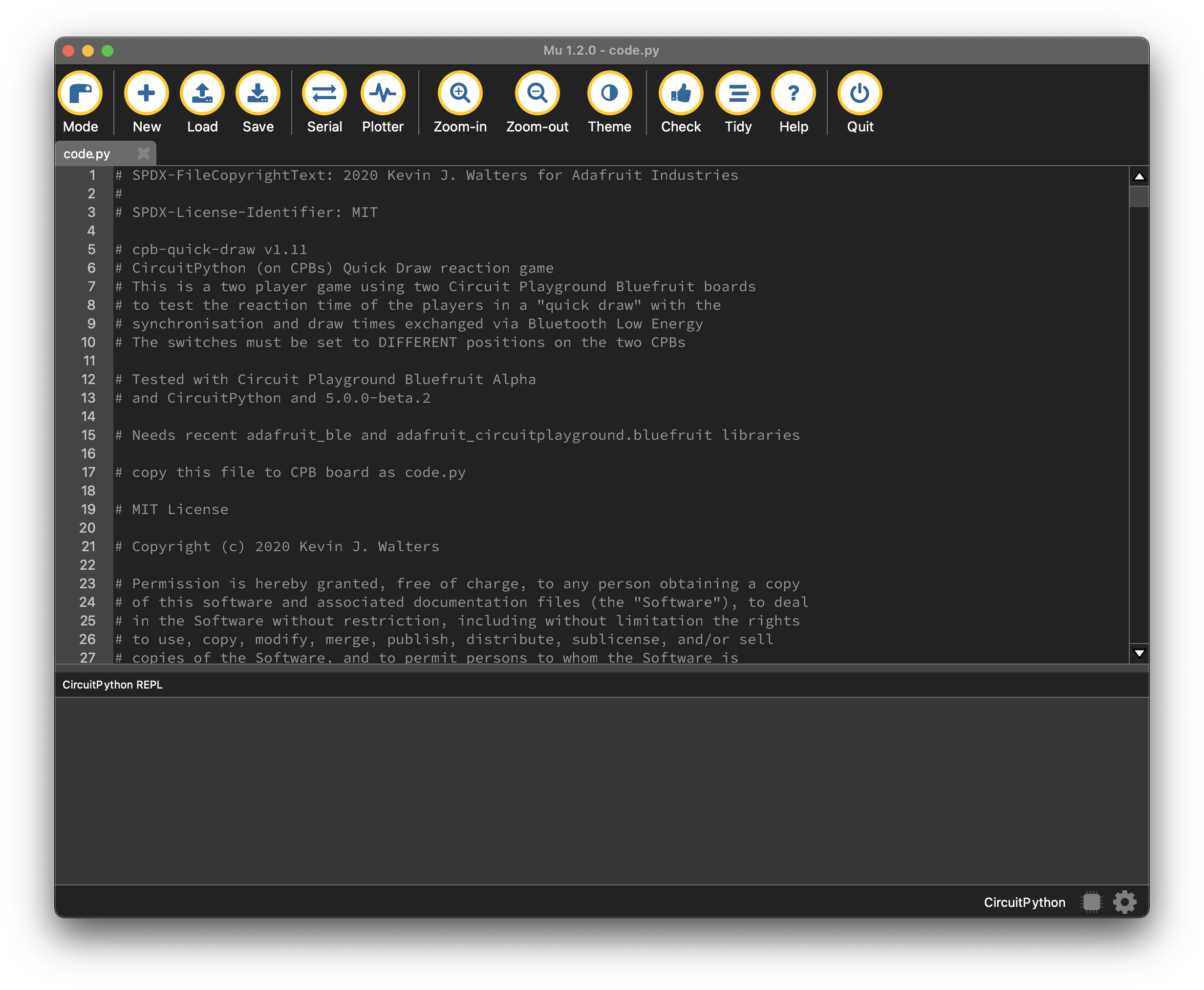
That part at the bottom that says CircuitPython REPL? That is your serial console. Now, click SAVE to reload your code, and you might get this:
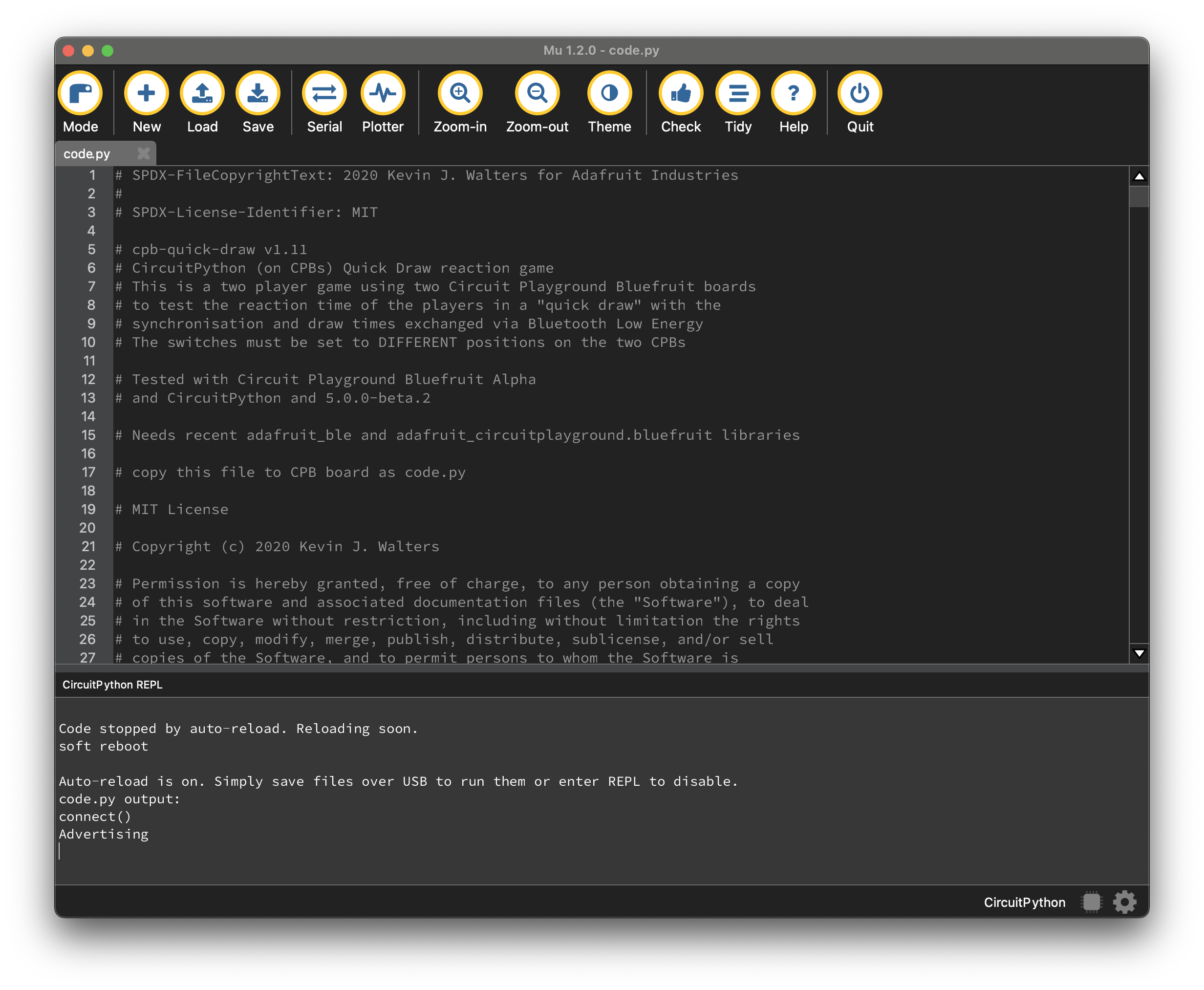
Or in theory, you would, if you weren’t surrounded by a bunch of other students running code. What you will likely get, if you are doing this tutorial in lab with everyone, is this:

(I pulled up the REPL window to display the whole exchange. You can do it too!) Your Bluefruit may be lit up solid white as well!
Either way, as long as you are getting one of those, your code has loaded successfully. But what if you don’t? Well, the serial console is also how we check for errors, so at this point, for example, if you were missing a library, you would get an error message (something like Import Error: no module named ‘neopixel’). If you get that message, check to make sure that the library file (mpy file) with that name is in the correct folder.
Once you have successful code, it’s time to try and play the game. For this, pair up with someone in the class, and go a safe distance from others so you don’t get interference. You can use the battery packs to take the Bluefruits away from your laptops! Follow the instructions in the code or on the Adafruit website to see how the game is played.
 Cyd Cipolla