Upgrading from a gemma to a cpx
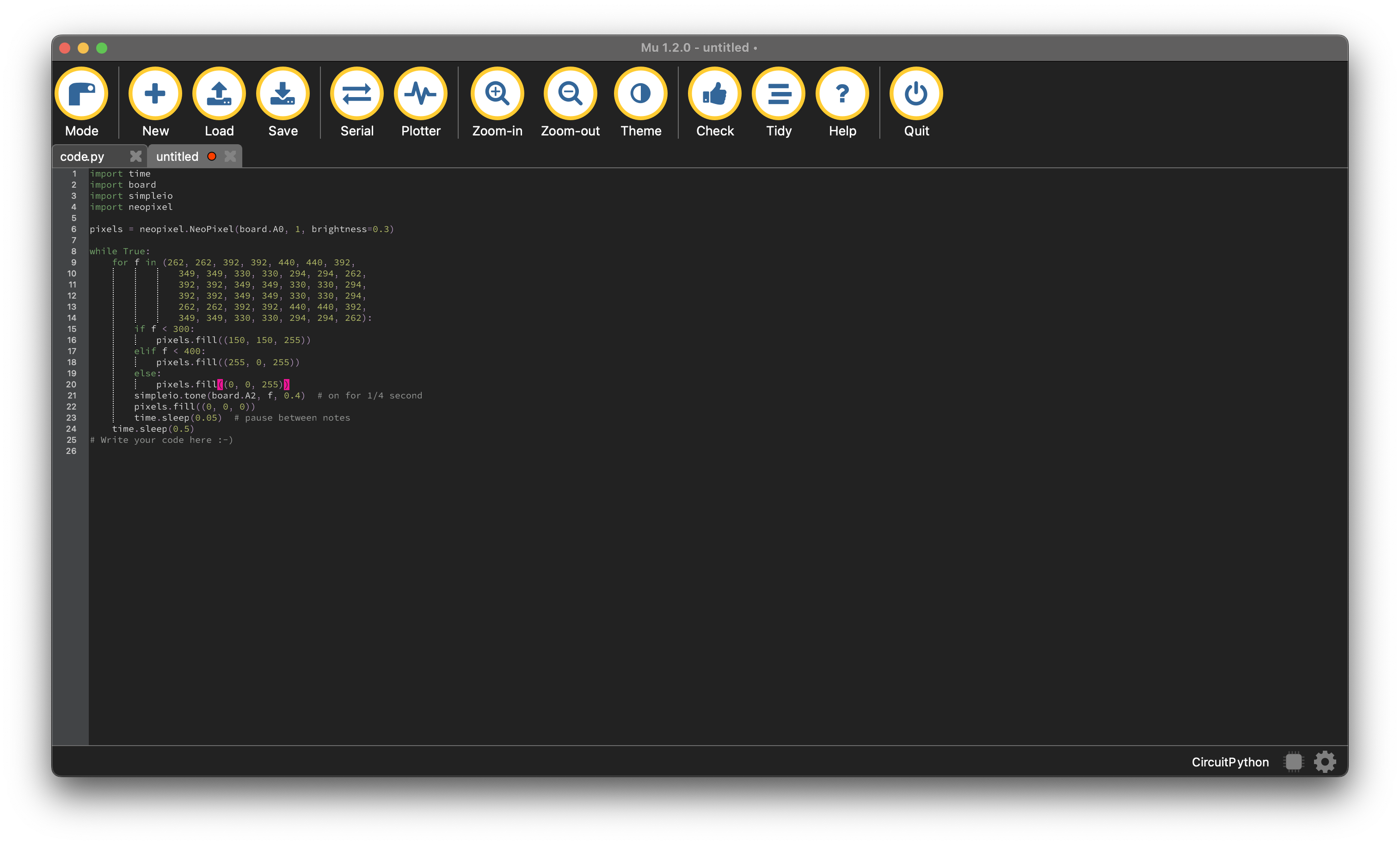
The GEMMA has gotten us very far, and it’s a cute little friend, but it simply doesn’t have the power we need. This week, we’re going to upgrade to a larger microprocessor- the Adafruit Circuit Playground Express. The code you wrote last week will still work, though! So start by pulling out your GEMMA one last time and loading the code from it, copying it, and pasting it into an untitled new file:
Now grab the CPX from your kit. It looks like this:

Plug it in, and we’ll begin by updating the bootloader and CircuitPython. Remember that to update, you need to be in bootloader mode – for the CPX, it will look like a solid green circle of lights. Drag the latest version of CircuitPython 9 onto the BOOT drive to reload it. Once that’s reappeared as CIRCUITPY, you need to add the simpleio.mpy library by going to that link, downloading the correct .mpy file, and then dragging it into the lib folder on CIRCUITPY.
No go ahead and return to Mu. Your old code should still be there as code.py, if so, go ahead and click SAVE to put it on the CPX. If it is not there, which happens, go ahead and copy it over from the untitled file.
Now- nothing happens!?? The code isn’t exactly compatible yet – the CPX has different default pins and pads, but, most importantly, it has devices built into it! So we’re going to need to tweak the code in order to make everything work. I’m using my last code as an example, you’ll want to just change the parts of yours that correspond to mine. Here’s what we ended with as a reference:
import time
import board
import simpleio
import neopixel

pixels = neopixel.NeoPixel(board.A0, 1, brightness=0.3)

while True:
    for f in (262, 262, 392, 392, 440, 440, 392,
                349, 349, 330, 330, 294, 294, 262,
                392, 392, 349, 349, 330, 330, 294,
                392, 392, 349, 349, 330, 330, 294,
                262, 262, 392, 392, 440, 440, 392,
                349, 349, 330, 330, 294, 294, 262):
        if f < 300:
            pixels.fill((150, 150, 255))
        elif f < 400:
            pixels.fill((255, 0, 255))
        else:
            pixels.fill((0, 0, 255))
        simpleio.tone(board.A2, f, 0.4)  # on for 1/4 second
        pixels.fill((0, 0, 0))
        time.sleep(0.05)  # pause between notes
    time.sleep(0.5)
We are going to update a few things: add a new library to handle audio, initialize the onboard speaker, and update the references to board.A0 and board.A2 to reflect our new, upgraded, board.
Start by adding this to the list of imports in your reference section:
import digitalioThis library is already included in the default libraries for the CPX, so no need to add it separately! We just need to call it in the code.
Next, go to the setup section and add this line, which will initialize the onboard speaker as an audio device. Remember that you can add it anywhere as long as it is on its own line, is below the references section and is above the while True loop section.
digitalio.DigitalInOut(board.SPEAKER_ENABLE)Finally, we’ll change the two pin references like so. For this, you want to change them wherever they are, so for me, I call board.A0 in the pixels definition in the setup section and board.A2 later in the loop section. We are going to change board.A0 to board.NEOPIXEL and board.A2 to board.SPEAKER:
pixels = neopixel.NeoPixel(board.NEOPIXEL, 1, brightness=0.3)simpleio.tone(board.SPEAKER, f, 0.4) # on for 1/4 secondWhat? Yes, it’s that easy – instead of telling the CPX to send this data out one of the pins, we’re going to tell it to use the onboard NeoPixels and onboard piezo speaker. My final code looks like this:
import time
import board
import simpleio
import neopixel
import digitalio

pixels = neopixel.NeoPixel(board.NEOPIXEL, 1, brightness=0.3)
digitalio.DigitalInOut(board.SPEAKER_ENABLE)

while True:
    for f in (262, 262, 392, 392, 440, 440, 392,
                349, 349, 330, 330, 294, 294, 262,
                392, 392, 349, 349, 330, 330, 294,
                392, 392, 349, 349, 330, 330, 294,
                262, 262, 392, 392, 440, 440, 392,
                349, 349, 330, 330, 294, 294, 262):
        if f < 300:
            pixels.fill((150, 150, 255))
        elif f < 400:
            pixels.fill((255, 0, 255))
        else:
            pixels.fill((0, 0, 255))
        simpleio.tone(board.SPEAKER, f, 0.4)  # on for 1/4 second
        pixels.fill((0, 0, 0))
        time.sleep(0.05)  # pause between notes
    time.sleep(0.5)
Double check you have updated yours fully, and then SAVE it. Lights and sound! The CPX does not have an on-off switch, so if you want it to shush, you need to unplug it.
You may have noticed that only one of the NeoPixels lights up- there are 10 on the board. Let’s get them all in play. Remember how the function took two variables – the pin and the number of pixels in the strip? Well, now we have 10 instead of one, so we change the 1 in this line
pixels = neopixel.NeoPixel(board.NEOPIXEL, 1, brightness=0.3)to a ten
pixels = neopixel.NeoPixel(board.NEOPIXEL, 10, brightness=0.3)Plug in your CPX, save it, and boom, more lights.
One final stretch, for those of you still around. NeoPixels are actually individually addressable, so let’s make a light pattern. To save your ears, you can turn off the sound for now by commenting out the audio initialization line:
#digitalio.DigitalInOut(board.SPEAKER_ENABLE)Adding that hashtag right before the line will skip it, but not delete it, so we can turn it back on later. Save your code to see the lights without sound.
We’re going to play with the individual lights now. For this, I’m modifying my code, so if yours is way different, you can adapt it, or you can just cut and paste mine. The pixels object we created has 10 items in it- one for each of the pixels in the strand. When we call pixels.fill, it makes them all the same color. So we’re going to change that and call just one of them at a time. We use a slightly different function and brackets to indicate which one to turn on. We’ll start with pixel 0. Delete this line:
pixels.fill((150, 150, 255))and replace it with this (remember to keep any indentation you had):
pixels[0] = (150, 150, 255)Replace the next pixels.fill with pixels[1] the same way, and so on. Then we’ll modify how the pixels disappear at the end – move the line pixels.fill((0, 0, 0)) down below the final time.sleep. The code now looks like this:
import time
import board
import simpleio
import neopixel
import digitalio

pixels = neopixel.NeoPixel(board.NEOPIXEL, 10, brightness=0.3)
#digitalio.DigitalInOut(board.SPEAKER_ENABLE)

while True:
    for f in (262, 262, 392, 392, 440, 440, 392,
                349, 349, 330, 330, 294, 294, 262,
                392, 392, 349, 349, 330, 330, 294,
                392, 392, 349, 349, 330, 330, 294,
                262, 262, 392, 392, 440, 440, 392,
                349, 349, 330, 330, 294, 294, 262):
        if f < 300:
            pixels[0] = (150, 150, 255)
        elif f < 400:
            pixels[1] = (255, 0, 255)
        else:
            pixels[2] = (0, 0, 255)
        simpleio.tone(board.SPEAKER, f, 0.4)  # on for 1/4 second
        time.sleep(0.05)  # pause between notes
    pixels.fill((0, 0, 0))
    time.sleep(0.5)
Click SAVE to run it, and you should see your neopixels light up one, two, three! Turn the sound back on if you want by removing the hash before digitalio.
Those of you who have made it this far should go ahead and try and make your own patterns with the lights. There is a lot of documentation about the onboard NeoPixels available from Adafruit, including some fun rainbow code. If you want inspiration, here’s some advanced code to pick apart:
import time
import board
import simpleio
import neopixel
from rainbowio import colorwheel
import digitalio

pixels = neopixel.NeoPixel(board.NEOPIXEL, 10, brightness=0.3)
digitalio.DigitalInOut(board.SPEAKER_ENABLE)

#Notes
C = 262
D = 294
E = 330
F = 349
G = 392
A = 440
B = 494

def rainbow_cycle(wait):
    for j in range(255):
        for i in range(10):
            rc_index = (i * 256 // 10) + j * 5
            pixels[i] = colorwheel(rc_index & 255)
        pixels.show()
        time.sleep(wait)

while True:
    for f in (C, C, G, G, A, A, G, F, F, E, E, D, D, C, G, G,
                F, F, E, E, D, G, G, F, F, E, E, D, C, C, G,
                G, A, A, G, F, F, E, E, D, D, C):
        if f == C:
            pixels[0] = (255, 0, 0)
        elif f == D:
            pixels[1] = (255, 255, 0)
        elif f == E:
            pixels[2] = (0, 255, 0)
        elif f == F:
            pixels[3] = (0, 255, 255)
        elif f == G:
            pixels[4] = (0, 0, 255)
        elif f == A:
            pixels[5] = (255, 0, 255)
        else:
            pixels[6] = (255, 255, 255)
        simpleio.tone(board.SPEAKER, f, 0.4)  # on for 1/4 second
        pixels.fill((0, 0, 0))
        time.sleep(0.05)  # pause between notes
    rainbow_cycle(0.05)
Next week, sensors!
 Cyd Cipolla