We are going to add “eyes” using the US-100 sensor, and then give the robot the ability to turn its “eyes” using a servo. Grab the items from your kit – you need the US sensor (in a pink bubble wrap cover), the orange 3D printed US sensor holder, and the black 3D printed servo mount with screws- they should be together in a little bag. You’ll also want a servo motor and four cables: two T/R jumpers and two R/A jumpers.
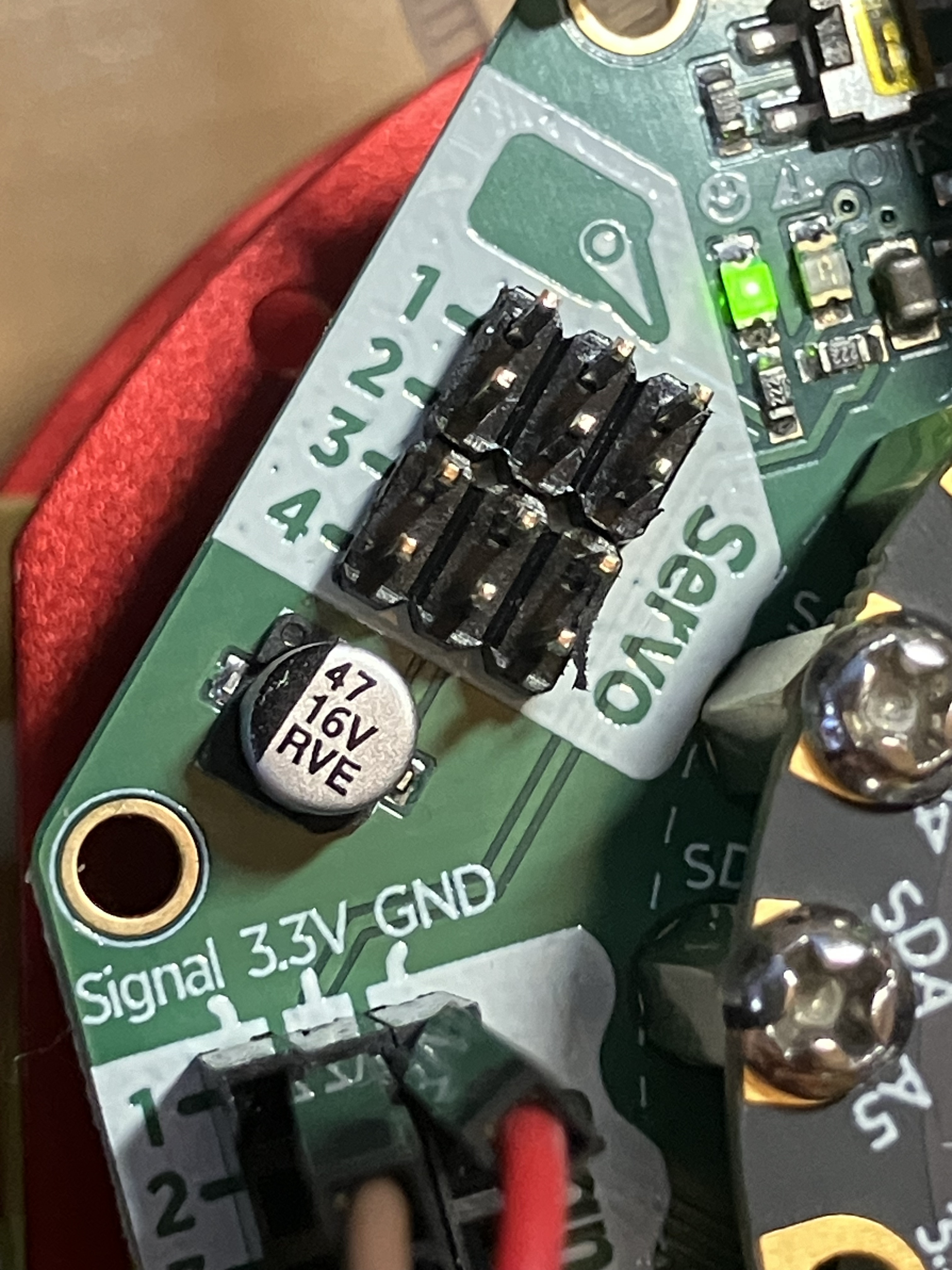
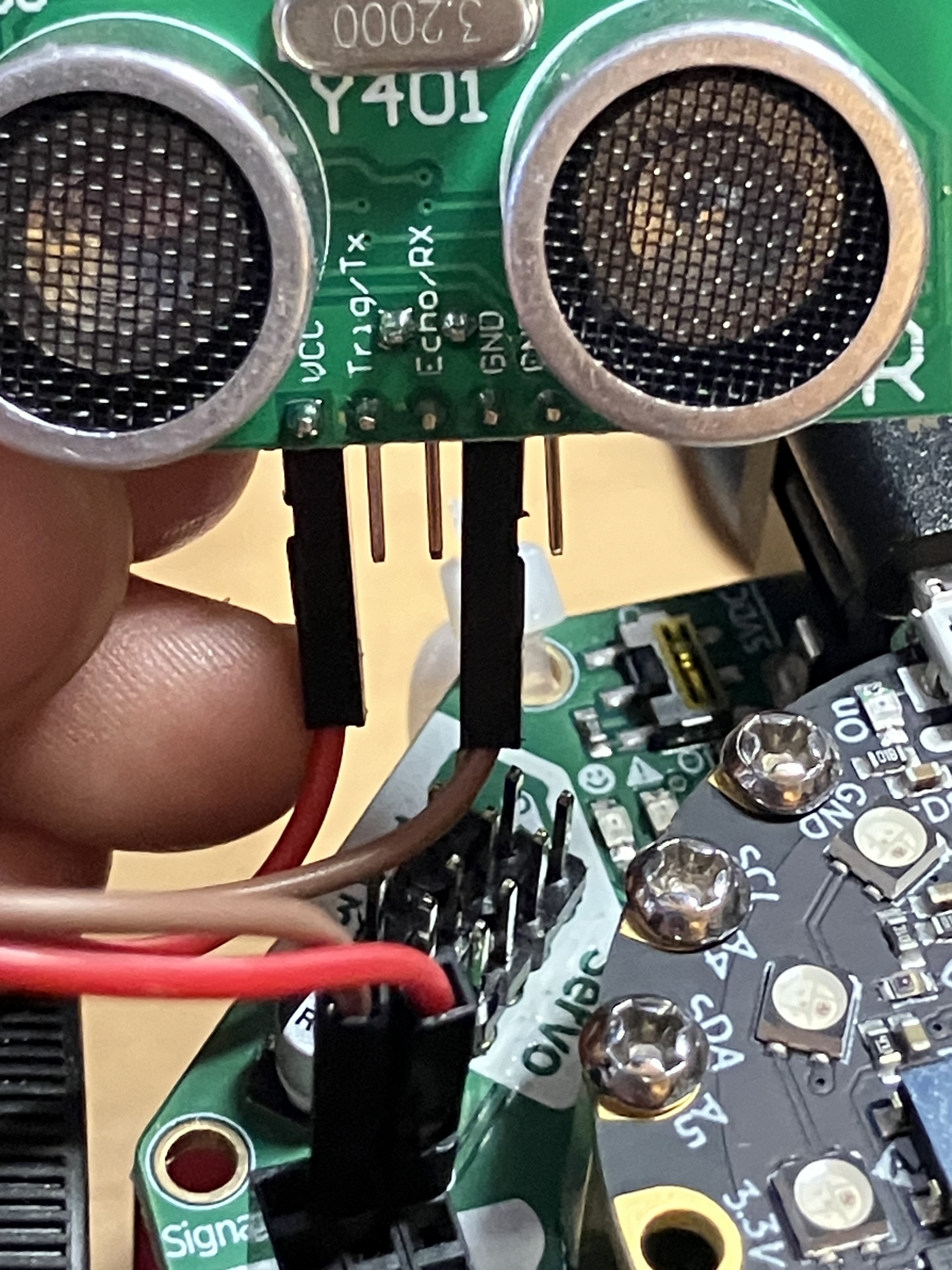
First, attach the receiver/transmitter wires to the VCC and GND pins on the US and then to the 3.3V and GND signal box on the CRICKIT:
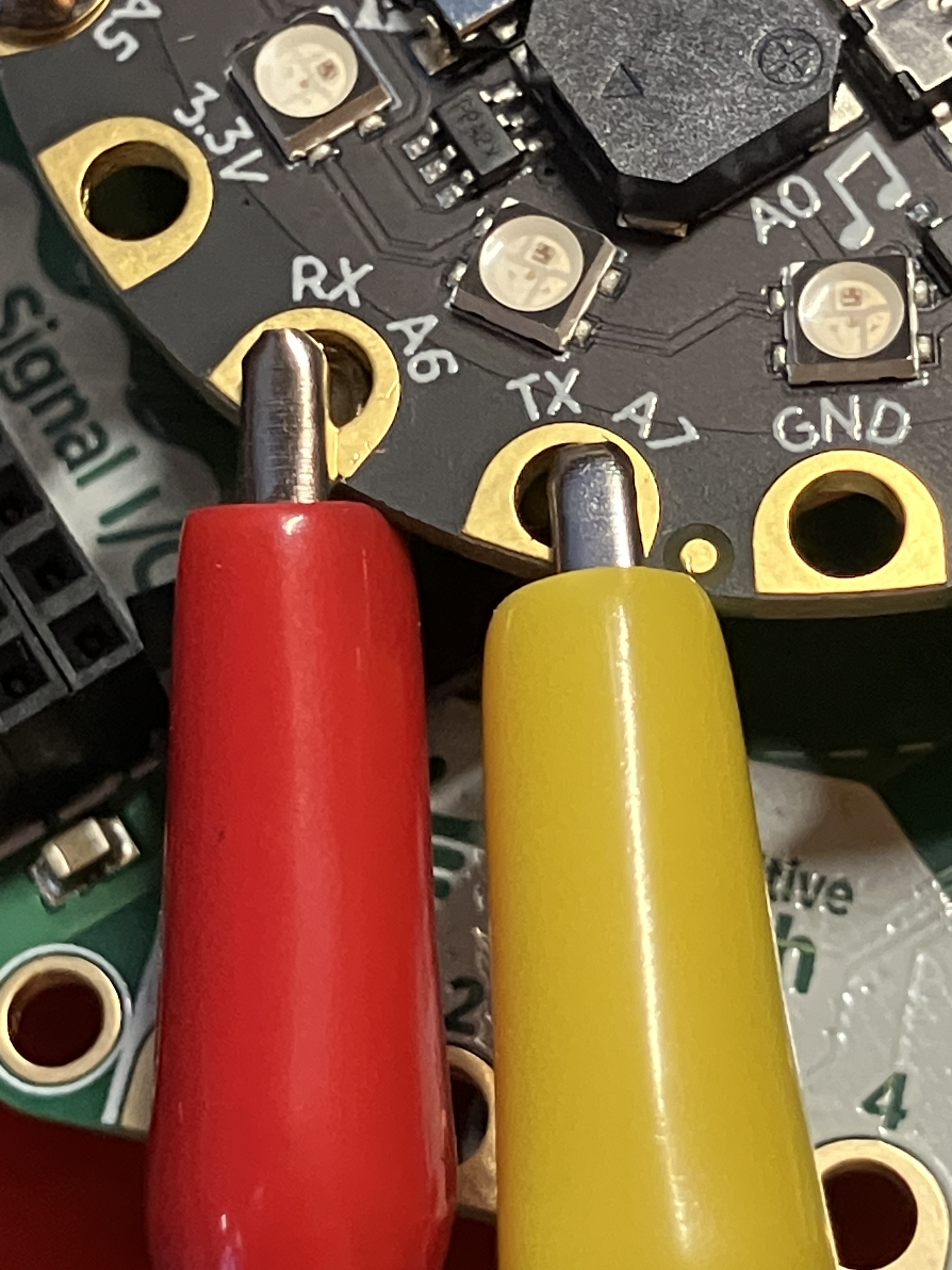
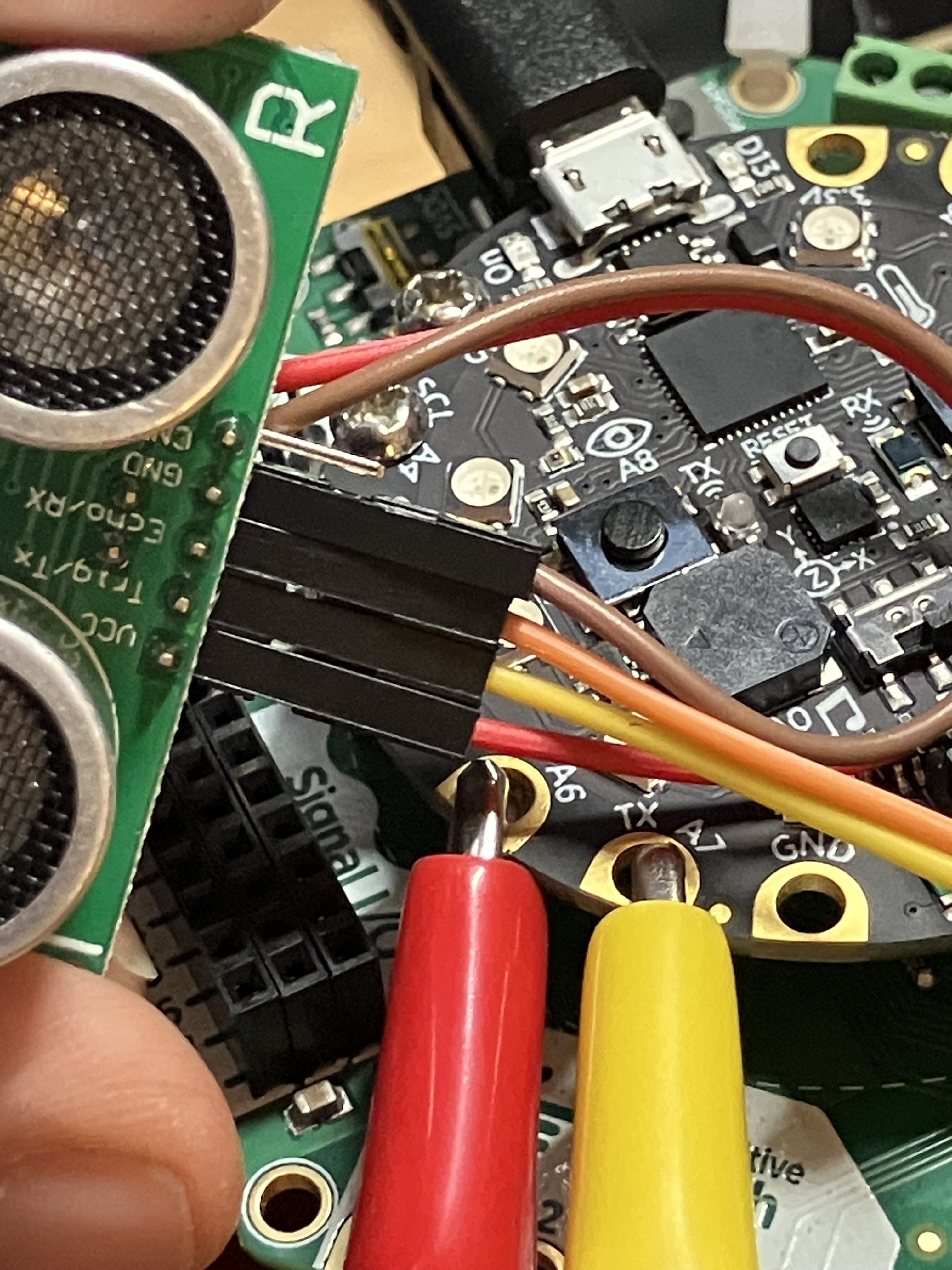
Then, using your receiver/alligator clips, attach the US-100 directly to the CPX: Trig/TX pin to the TX/A7 pad and Echo/RX to the RX/A6 pad:
Now we’re going to test to make sure the CPX/CRICKIT is communicating with the US sensor. You’ll need a new library called adafruit_us100.mpy- you can either grab it from the full library list at CircuitPython.org or download it directly from the class resources folder.

Now put that library on your CPX, inside the lib folder:

Open up Mu, navigate to the correct code.py file, delete what is there, and put in this test code instead:
import time
import board
import busio
import adafruit_us100

uart = busio.UART(board.TX, board.RX, baudrate=9600)

us100 = adafruit_us100.US100(uart)

while True:
    print("-----")
    print(f"Temperature: {us100.temperature}°C")
    time.sleep(0.5)
    print(f"Distance: {us100.distance} cm")
    time.sleep(0.5)
Save the file. You’ll likely get an error right away, so check the serial to monitor it (you’ll see our friend the SDL/SCA error), because US-100 is drawing power from the CRICKIT board, and it’s probably not on. Turn the CRICKIT on and hit save (with the serial window still open!!) and you should see a stream of data. Put your hand in front of the sensor to make sure it’s reading properly – the most common error is wiring up the TX/RX cables backwards, so if the data looks wonky, check those first.
Once you’ve got that wired up, set up your servo on the CRICKET using the mount and the screws. You’re going to put it in the front. You’ll want its neutral setting (90 degrees) to be facing forward, and have it be able to sweep left and right. so make sure you set that up. Then plug the servo into the CRICKIT board, with the darkest brown wire closet to the CPX.
You can use this code to check if the servo is centered and wired correctly:
import timefrom adafruit_crickit import crickitimport board # Create one servo on Crickit's servo port #1servo = crickit.servo_1 while True: servo.angle = 90 #centers the servo at startup time.sleep(.1)
This should angle your servo straight forward. Set the US on it so that it is facing forward. Now, you can load this code:
import timefrom adafruit_crickit import crickitimport boardimport busioimport adafruit_us100uart = busio.UART(board.TX, board.RX, baudrate=9600)us100 = adafruit_us100.US100(uart) servo = crickit.servo_1leftfoot = crickit.dc_motor_1rightfoot = crickit.dc_motor_2def RightTurn(r): leftfoot.throttle = .7 rightfoot.throttle = 0 time.sleep(r)def LeftTurn(t): leftfoot.throttle = 0 rightfoot.throttle = .7 time.sleep(t)def MoveForward(f): leftfoot.throttle = .7 rightfoot.throttle = .7 time.sleep(f)def MoveBackward(b): leftfoot.throttle = -.7 rightfoot.throttle = -.7 time.sleep(b)def Stop(s): leftfoot.throttle = 0 rightfoot.throttle = 0 time.sleep(s) def CheckforObstacles(): dist = us100.distance servo.angle = 180 time.sleep(.3) leftdist = us100.distance print(leftdist) servo.angle = 0 time.sleep(.3) rightdist = us100.distance print(rightdist) servo.angle = 90 time.sleep(.3) if leftdist >= 30: LeftTurn(.3) elif rightdist >= 30: RightTurn(.3) else: MoveBackward(.3)servo.angle = 90 #centers the servo at startuptime.sleep(.1)while True: dist = us100.distance print(dist) if dist <= 30: Stop(.3) CheckforObstacles() else: MoveForward(.01)
 Cyd Cipolla